How to Convert Any Text to Bionic Reading Format: The Complete Step-by-Step Tutorial for Beginners (PDFs, Ebooks, Documents & More)

Marcus Reed
Productivity Editor
If you're drowning in PDFs, struggling through textbooks, or staring at ebooks that feel like they're fighting back, you're in the right place. Converting text to bionic reading format is easier than you think, and this guide walks you through every method from copy-paste to full ebook import, step by step.
Bionic reading bolds the first part of each word to create visual anchors your brain uses to move through text faster. No speed reading courses. No complicated techniques. Just text that works with your brain instead of against it.
What's in this article
- What Is Bionic Reading Format?
- Why Convert Text to Bionic Format?
- Step-by-Step: Converting Your First Text
- Common Mistakes Beginners Make (and How to Avoid Them)
- Real-World Use Cases: Who's Converting Text and Why
- Advanced Tips: Getting the Most from Bionic Reading
- The Screen Time Paradox: Reading Smarter, Not Longer
- Next Steps: Start Converting Your Text Today
What Is Bionic Reading Format?
Bionic reading is a text formatting technique that bolds the beginning of each word to create artificial fixation points. Your eyes lock onto these bold anchors, and your brain automatically fills in the rest of each word. The result is that you read faster with less effort and better focus.
Here's a quick example:
Regular text: "The quick brown fox jumps over the lazy dog."
Bionic text: "The quick brown fox jumps over the lazy dog."
Those bold prefixes guide your eyes in smooth, efficient movements across the page. The technique draws on research into how the eye processes partial word shapes during normal reading. For background on the concept and its origins, see the Wikipedia article on Bionic Reading.
Who benefits most? Students tackling dense textbooks, professionals processing mountains of reports, researchers scanning academic papers, people with ADHD or dyslexia who struggle with focus and tracking, and anyone who wants to read faster without sacrificing understanding.
Why Convert Text to Bionic Format?
Your eyes make tiny jumps called saccades when you read, covering about 7-9 letters at a time for most people. Bionic reading optimizes these jumps by giving your eyes clear targets. Instead of your gaze wandering or backtracking (which happens constantly in normal reading), you move forward smoothly.
The benefits stack up fast:
| Benefit | Who feels it most | When it kicks in |
|---|---|---|
| Speed increase | Most readers | After 15-20 min of practice |
| Better focus | ADHD readers especially | Almost immediately |
| Reduced eye fatigue | Long-session readers | Within the first sitting |
| Improved line tracking | Dyslexic readers | From the first paragraph |
| Less re-reading | All readers | After a short adjustment period |
- Speed: Read 30-50% faster once you're comfortable with the format
- Focus: The bold anchors keep you locked on the text, which is particularly helpful for ADHD readers
- Comprehension: Less mental effort per word means more brainpower for meaning
- Reduced fatigue: Your eyes work less hard, so you can read longer
- Better tracking: Essential for dyslexic readers who lose their place
A March 2026 analysis on reading apps emphasized that tools aligned with cognitive science, including bionic reading, are becoming the standard for learners with ADHD, dyslexia, and other learning differences. The fixation points provide structure that struggling readers need.
Step-by-Step: Converting Your First Text
Let's get practical. Here's how to convert any text to bionic reading format, even if you've never done it before.
Method 1: Using a Free Online Bionic Reader (Fastest)
Step 1: Copy the text you want to convert. This could be from a Word document, a webpage, an email, or anywhere.
Step 2: Open a bionic reading converter. FastRead's Bionic Reader is completely free and works instantly in your browser, no signup required.
Step 3: Paste your text into the input box.
Step 4: Click "Convert" or "Bionicize." The tool instantly transforms your text with bold fixation points.
Step 5: Read directly in the tool, or copy the bionic text back to your preferred reading environment.
This method works great for articles, emails, web content, or any text you can copy-paste. It takes literally 10 seconds.
Method 2: Converting PDFs and Ebooks (Most Common)
PDFs and ebooks are trickier because they're formatted documents, not plain text. Here's the workflow:
For PDFs:
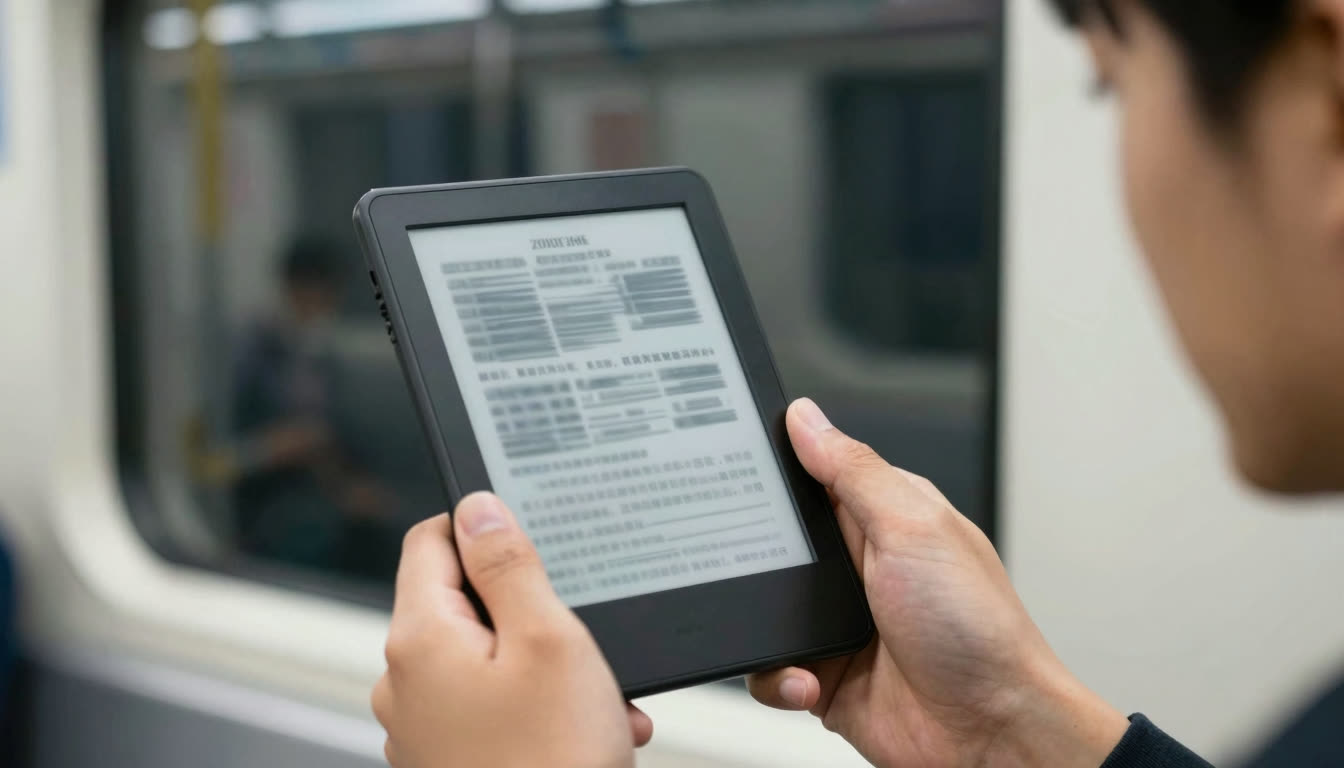
Step 1: Open your PDF in a reader that supports bionic format. FastRead's mobile apps (iOS and Android) let you upload PDFs directly and read them in bionic format without conversion hassles.
Step 2: Alternatively, copy text from your PDF (select text, right-click, copy), then paste it into a bionic reader tool.
Step 3: If you need a permanent bionic PDF, some tools can convert PDFs to bionic format and export them. However, most people find it easier to just read in a bionic-capable app.
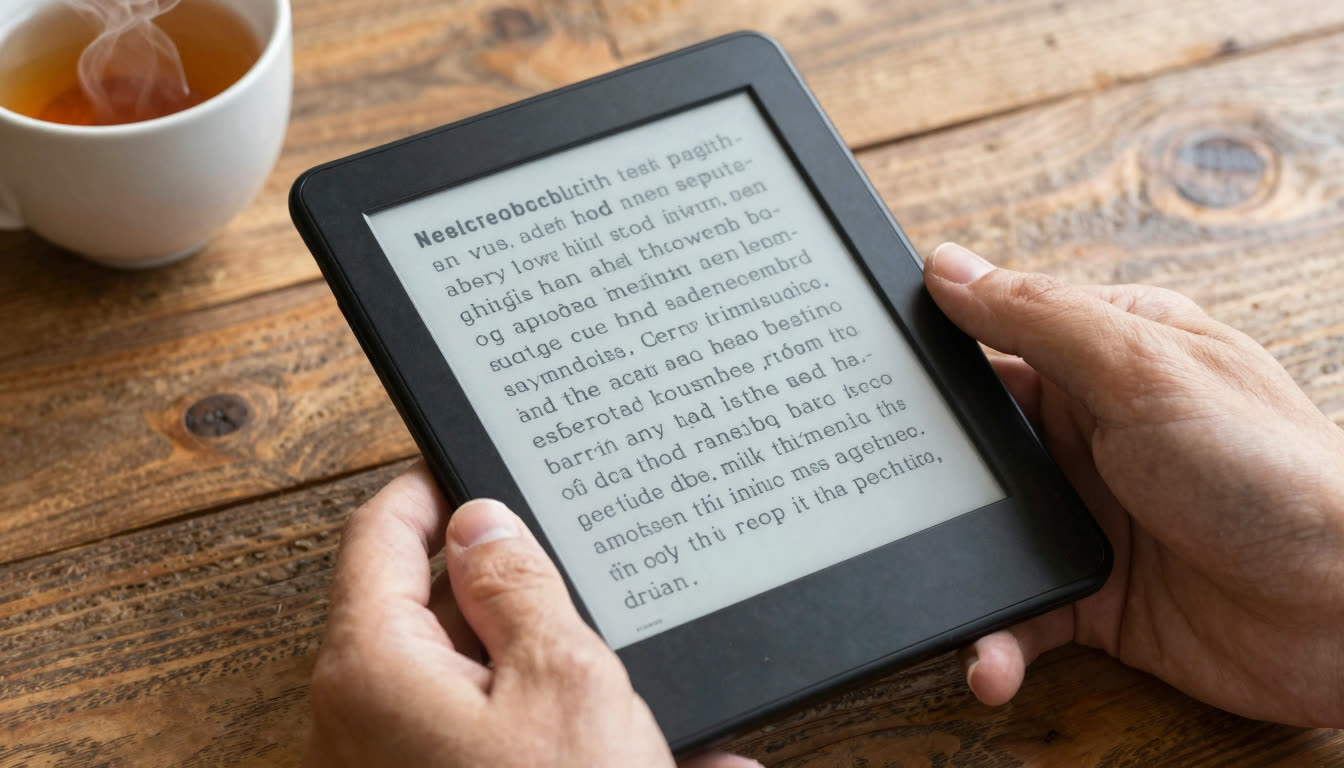
For Ebooks (ePub, MOBI, etc.):
Step 1: Download the FastRead app from the App Store (iPhone/iPad) or Google Play (Android).
Step 2: Import your ebook into the app. FastRead supports ePub and other common formats.
Step 3: The app automatically displays your ebook in bionic reading format. Adjust the boldness level in settings to match your preference.
Step 4: Start reading. Your reading speed and progress are tracked automatically if you want to monitor improvement.
This is the best method for book lovers and students who read lots of ebooks or research papers.
Method 3: Converting Documents (Word, Google Docs, Notes)
Step 1: Select and copy the text from your document.
Step 2: Paste into a free bionic reading tool like FastRead's web app.
Step 3: Read in the tool's Focus Reader mode for a distraction-free experience, or copy the bionic text back into your document if you want to keep it there.
Pro tip: If you're studying or annotating, keep your original document open and use a second window with the bionic version. Read in bionic format for speed, then make notes in your original doc.
Common Mistakes Beginners Make (and How to Avoid Them)
Mistake #1: Expecting Instant Mastery
Bionic reading feels unfamiliar for the first 5-10 minutes. Your brain is used to processing text a certain way. Give it a short practice session, FastRead's Practice Texts tool has curated content designed for this, and you'll adapt quickly. Most people hit their stride within 15-20 minutes of total practice.
Mistake #2: Setting the Boldness Too High or Too Low
Different brains prefer different boldness levels. If too much of each word is bolded, you lose the speed benefit. If too little is bolded, your eyes don't have strong enough anchors. Experiment. Most tools let you adjust the percentage. Start at 40-50% of each word and tweak from there.
Mistake #3: Only Converting Short Texts
Bionic reading shines with long content: textbooks, research papers, full ebooks. That's where the speed and fatigue benefits compound. Don't just test it on a 200-word article and call it quits. Try a full chapter or paper.
Mistake #4: Forgetting to Test Your Speed
How do you know if bionic reading is working for you? Measure! Take a reading speed test with normal text, then take another one with bionic text after a few practice sessions. Most people see a 20-30% speed increase within a week. Tracking your words-per-minute (WPM) keeps you motivated.
Mistake #5: Not Using It for the Right Content
Bionic reading is fantastic for informational content: textbooks, reports, articles, non-fiction books, research papers. It's less useful for creative fiction where you want to savor language, or poetry where rhythm matters. Match the tool to the task.
Real-World Use Cases: Who's Converting Text and Why
Students: Medical and law students especially love bionic reading for dense textbooks. One user reported cutting their study reading time by 40% during bar exam prep by converting case law PDFs to bionic format.
Professionals: Knowledge workers processing 50+ emails and multiple reports daily use bionic text to stay on top of information overload without burning out by 2 PM.
Researchers: Academic researchers use bionic format for literature reviews, scanning 20-30 papers in the time they used to read 10-15.
ADHD readers: The bold fixation points provide structure that helps ADHD brains stay locked on the page instead of drifting. Many ADHD readers describe bionic text as "the first time reading didn't feel like a fight." For more on this, see our deep dive on focus reading techniques for ADHD.
Language learners: The visual anchors help parse foreign text more easily, making bionic reading surprisingly effective for intermediate learners working through books in their target language.
A recent June 2026 report from Ridgewood High School in Ohio described students building an AI-powered reading app with accessibility features for struggling readers, highlighting how personalized reading tools, including format adjustments like bionic text, are becoming essential for modern literacy.
Advanced Tips: Getting the Most from Bionic Reading
Combine with focus techniques: Use bionic text in a distraction-free environment. FastRead's Focus Reader strips away everything but the text.
Track your progress: Use a reading tracker to log your WPM improvements over weeks. Seeing your speed climb is incredibly motivating.
Pair with summarization for long documents: For 50-page reports, use a text summarizer first to get the overview, then read key sections in bionic format for speed.
Build vocabulary as you go: If you're reading to learn (textbooks, professional development), use a vocabulary builder tool to capture and review new terms.
Adjust for different content types: Dense academic text might need slightly more boldness; lighter content might need less. Tune as you go.
The Screen Time Paradox: Reading Smarter, Not Longer
Here's something worth noting: a late-May 2026 US Surgeon General advisory warned about excessive screen time (4+ hours/day for many teens) harming sleep, academics, and relationships. The solution isn't to stop reading digital content; it's to read more efficiently.
Bionic reading lets you extract the same information in 30-50% less time, which means less screen exposure for the same knowledge gain. If you're going to be on a screen anyway, you might as well make those minutes count.
Next Steps: Start Converting Your Text Today
You now know everything you need to convert any text to bionic reading format. Here's your action plan:
Today: Take a document or article you need to read and convert it using FastRead's free Bionic Reader. Read it and notice how your eyes move.
This week: Download the FastRead app (iOS and Android download links here) and import an ebook or PDF. Read a full chapter in bionic format.
This month: Take a speed test before and after a few bionic reading sessions. Track your WPM improvement.
Going forward: Make bionic reading your default for informational content. Students, use it for textbooks. Professionals, use it for reports and emails. Researchers, use it for papers. Book lovers, use it to finally clear that reading backlog.
FastRead is a completely free bionic reading app available on iOS, Android, and web, with 11 professional reading tools including the bionic reader, speed test, focus reader, practice texts, text summarizer, vocabulary builder, and reading tracker. No subscription. No paywalls. Just better reading.
Your eyes will thank you. Your productivity will skyrocket. And that intimidating stack of reading? Suddenly a lot less intimidating.
Ready to read faster? Try the Bionic Reader now or download FastRead and convert your first ebook in under 60 seconds.
About the author
Marcus Reed
Productivity Editor
Marcus Reed writes about reading as a productivity system - how busy professionals read more in less time without losing comprehension. He focuses on practical habits, workflows and the tools that make them stick.
More from Marcus Reed →Read faster everywhere with the app
Bionic-read any article, PDF or ebook on the go, save your library, and track your speed. Free to download.


 Scan to get the app - opens the App Store on iPhone/iPad, Google Play on Android